Socket programming using python [UDP]

What is Sockets?
Sockets are the endpoints of a bidirectional communications channel. Sockets may communicate within a process, between processes on the same machine, or between processes on different continents.
Sockets may be implemented over a number of different channel types: Unix domain sockets, TCP, UDP, and so on. The socket library provides specific classes for handling the common transports as well as a generic interface for handling the rest.
Sockets have their own vocabulary −
Sr.No. Term & Description
1 Domain
The family of protocols that is used as the transport mechanism. These values are constants such as AF_INET, PF_INET, PF_UNIX, PF_X25, and so on.
2 type
The type of communications between the two endpoints, typically SOCK_STREAM for connection-oriented protocols and SOCK_DGRAM for connectionless protocols.
3 protocol
Typically zero, this may be used to identify a variant of a protocol within a domain and type.
4 hostname
The identifier of a network interface −
A string, which can be a host name, a dotted-quad address, or an IPV6 address in colon (and possibly dot) notation
A string “”, which specifies an INADDR_BROADCAST address.
A zero-length string, which specifies INADDR_ANY, or
An Integer, interpreted as a binary address in host byte order.
5 port
Each server listens for clients calling on one or more ports. A port may be a Fixnum port number, a string containing a port number, or the name of a service.
The socket Module
To create a socket, you must use the socket.socket() function available in socket module, which has the general syntax −
s = socket.socket (socket_family, socket_type, protocol=0)
Here is the description of the parameters −
socket_family − This is either AF_UNIX or AF_INET, as explained earlier.
socket_type − This is either SOCK_STREAM or SOCK_DGRAM.
protocol − This is usually left out, defaulting to 0.
Once you have socket object, then you can use required functions to create your client or server program. Following is the list of functions required −
Server Socket Methods
Sr.No. Method & Description
1 s.bind()
This method binds address (hostname, port number pair) to socket.
2 s.listen()
This method sets up and start TCP listener.
3 s.accept()
This passively accept TCP client connection, waiting until connection arrives (blocking).
Client Socket Methods
Sr.No. Method & Description
1 s.connect()
This method actively initiates TCP server connection.
General Socket Methods
Sr.No. Method & Description
1 s.recv()
This method receives TCP message
2 s.send()
This method transmits TCP message
3 s.recvfrom()
This method receives UDP message
4 s.sendto()
This method transmits UDP message
5 s.close()
This method closes socket
6 socket.gethostname()
Returns the hostname.
A Simple Server
To write Internet servers, we use the socket function available in socket module to create a socket object. A socket object is then used to call other functions to setup a socket server.
Now call bind(hostname, port) function to specify a port for your service on the given host.
Next, call the accept method of the returned object. This method waits until a client connects to the port you specified, and then returns a connection object that represents the connection to that client.

!/usr/bin/python

# This is server.py file

import socket # Import socket module

s = socket.socket() # Create a socket object
host = socket.gethostname() # Get local machine name
port = 12345 # Reserve a port for your service.
s.bind((host, port)) # Bind to the port

s.listen(5) # Now wait for client connection.
while True:
c, addr = s.accept() # Establish connection with client.
print ‘Got connection from’, addr
c.send(‘Thank you for connecting’)
c.close() # Close the connection
A Simple Client
Let us write a very simple client program which opens a connection to a given port 12345 and given host. This is very simple to create a socket client using Python’s socket module function.
The socket.connect(hosname, port ) opens a TCP connection to hostnameon the port. Once you have a socket open, you can read from it like any IO object. When done, remember to close it, as you would close a file.
The following code is a very simple client that connects to a given host and port, reads any available data from the socket, and then exits −

!/usr/bin/python

# This is client.py file

import socket # Import socket module

s = socket.socket() # Create a socket object
host = socket.gethostname() # Get local machine name
port = 12345 # Reserve a port for your service.

s.connect((host, port))
print s.recv(1024)
s.close() # Close the socket when done
Now run this server.py in background and then run above client.py to see the result.

Following would start a server in background.

$ python server.py &

Once server is started run client as follows:

$ python client.py
This would produce following result −
Got connection from (‘127.0.0.1’, 48437)
Thank you for connecting

Socket programming in Java [TCP]

Socket Programming in Java
This article describes a very basic one-way Client and Server setup where a Client connects, sends messages to server and the server shows them using socket connection. There’s a lot of low-level stuff that needs to happen for these things to work but the Java API networking package (java.net) takes care of all of that, making network programming very easy for programmers.
Client Side Programming
Establish a Socket Connection
To connect to other machine we need a socket connection. A socket connection means the two machines have information about each other’s network location (IP Address) and TCP port.The java.net.Socket class represents a Socket. To open a socket:
Socket socket = new Socket(“127.0.0.1”, 5000)
First argument – IP address of Server. ( 127.0.0.1  is the IP address of localhost, where code will run on single stand-alone machine).
Second argument – TCP Port. (Just a number representing which application to run on a server. For example, HTTP runs on port 80. Port number can be from 0 to 65535)
Communication

To communicate over a socket connection, streams are used to both input and output the data.
Closing the connection
The socket connection is closed explicitly once the message to server is sent.
In the program, Client keeps reading input from user and sends to the server until “Over” is typed.
Java Implementation
filter_none
edit
play_arrow
brightness_4
// A Java program for a Client
import java.net.; import java.io.;
  
public class Client
{
    // initialize socket and input output streams
    private Socket socket            = null;
    private DataInputStream  input   = null;
    private DataOutputStream out     = null;
  
    // constructor to put ip address and port
    public Client(String address, int port)
    {
        // establish a connection
        try
        {
            socket = new Socket(address, port);
            System.out.println(“Connected”);
  
            // takes input from terminal
            input  = new DataInputStream(System.in);
  
            // sends output to the socket
            out    = new DataOutputStream(socket.getOutputStream());
        }
        catch(UnknownHostException u)
        {
            System.out.println(u);
        }
        catch(IOException i)
        {
            System.out.println(i);
        }
  
        // string to read message from input
        String line = “”;
  
        // keep reading until “Over” is input
        while (!line.equals(“Over”))
        {
            try
            {
                line = input.readLine();
                out.writeUTF(line);
            }
            catch(IOException i)
            {
                System.out.println(i);
            }
        }
  
        // close the connection
        try
        {
            input.close();
            out.close();
            socket.close();
        }
        catch(IOException i)
        {
            System.out.println(i);
        }
    }
  
    public static void main(String args[])
    {
        Client client = new Client(“127.0.0.1”, 5000);
    }
}
Server Programming
Establish a Socket Connection
To write a server application two sockets are needed.
A ServerSocket which waits for the client requests (when a client makes a new Socket())
A plain old Socket socket to use for communication with the client.
Communication
getOutputStream() method is used to send the output through the socket.

Close the Connection
After finishing,  it is important to close the connection by closing the socket as well as input/output streams.
filter_none
edit
play_arrow
brightness_4
// A Java program for a Server
import java.net.; import java.io.;
  
public class Server
{
    //initialize socket and input stream
    private Socket          socket   = null;
    private ServerSocket    server   = null;
    private DataInputStream in       =  null;
  
    // constructor with port
    public Server(int port)
    {
        // starts server and waits for a connection
        try
        {
            server = new ServerSocket(port);
            System.out.println(“Server started”);
  
            System.out.println(“Waiting for a client …”);
  
            socket = server.accept();
            System.out.println(“Client accepted”);
  
            // takes input from the client socket
            in = new DataInputStream(
                new BufferedInputStream(socket.getInputStream()));
  
            String line = “”;
  
            // reads message from client until “Over” is sent
            while (!line.equals(“Over”))
            {
                try
                {
                    line = in.readUTF();
                    System.out.println(line);
  
                }
                catch(IOException i)
                {
                    System.out.println(i);
                }
            }
            System.out.println(“Closing connection”);
  
            // close connection
            socket.close();
            in.close();
        }
        catch(IOException i)
        {
            System.out.println(i);
        }
    }
  
    public static void main(String args[])
    {
        Server server = new Server(5000);
    }
}
Important Points
Server application makes a ServerSocket on a specific port which is 5000. This starts our Server listening for client requests coming in for port 5000.
Then Server makes a new Socket to communicate with the client.
socket = server.accept()
The accept() method blocks(just sits there) until a client connects to the server.
Then we take input from the socket using getInputStream() method. Our Server keeps receiving messages until the Client sends “Over”.
After we’re done we close the connection by closing the socket and the input stream.
To run the Client and Server application on your machine, compile both of them. Then first run the server application and then run the Client application.
To run on Terminal or Command Prompt
Open two windows one for Server and another for Client

  1. First run the Server application as ,
    $ java Server
    Server started
    Waiting for a client …
  2. Then run the Client application on another terminal as,
    $ java Client
    It will show – Connected and the server accepts the client and shows,
    Client accepted
  3. Then you can start typing messages in the Client window. Here is a sample input to the Client
    Hello
    I made my first socket connection
    Over
    Which the Server simultaneously receives and shows,
    Hello
    I made my first socket connection
    Over
    Closing connection
    Notice that sending “Over” closes the connection between the Client and the Server just like said before.
    If you’re using Eclipse or likes of such-
     Compile both of them on two different terminals or tabs
     Run the Server program first
     Then run the Client program
     Type messages in the Client Window which will be received and showed by the Server Window simultaneously.
     Type Over to end.

VLAN Configuration Using Cisco Packet Tracer

Creating a simple topology using packet tracer

Creating VLAN

Initial topology for the practice of VLAN, VTP, DTP and Router on Stick

SWITCH1

S1(config)#vlan 10
S1(config-vlan)#exit
S1(config)#vlan 20
S1(config-vlan)#exit
S1(config)#

Assigning VLAN Membership

switch1

S1(config)#interface fastEthernet 0/1
S1(config-if)#switchport access vlan 10
S1(config-if)#interface fastEthernet 0/2
S1(config-if)#switchport access vlan 20

switch2

S2(config)#interface fastEthernet 0/1
S2(config-if)#switchport access vlan 10
S2(config-if)#interface fastEthernet 0/2
S2(config-if)#switchport access vlan 20

switch3

S3(config)#interface fastEthernet 0/1
S3(config-if)#switchport access vlan 10
S3(config-if)#interface fastEthernet 0/2
S3(config-if)#switchport access vlan 20

Testing VLAN configuration

1] Access PC’s command prompt to test VLAN configuration. Double click PC-PT and click Command Prompt

A] VLAN10

VLAN Test

B] VLAN20

Test VLAN

Configure Router

Access command prompt of Router

To configure Router on Stick we have to access CLI prompt of Router. Click Router and Click CLI from menu items and Press Enter key to access the CLI

Run following commands in same sequence to configure Router

Router>enable
Router#configure terminal
Enter configuration commands, one per line.  End with CNTL/Z.
Router(config)#interface fastEthernet 0/0
Router(config-if)#no ip address
Router(config-if)#no shutdown
Router(config-if)#exit
Router(config)#interface fastEthernet 0/0.10
Router(config-subif)#encapsulation dot1Q 10
Router(config-subif)#ip address 10.0.0.1 255.0.0.0
Router(config-subif)#exit
Router(config)#interface fastEthernet 0/0.20
Router(config-subif)#encapsulation dot1Q 20
Router(config-subif)#ip address 20.0.0.1 255.0.0.0
Router(config-subif)#exit


Network Devices

Cisco devices and Packet Tracer devices

Selecting Switches or Routers from the device-type selection box lists both Cisco devices and some devices labeled Generic. These are custom Packet Tracer devices running on Cisco IOS, but the slots that hold the modules are different.

Routers

A router provides connectivity between two logical networks. Every router in Packet Tracer can be switched on or off by using the provided power button.

The power switch is required to make a device simulate its real counterpart. Modules can be added or removed only after powering off the device. If the running configuration is not saved, power cycling a device will make it lose its configuration.

The following routers are available in Packet Tracer:

  • Cisco 1841: This is an Integrated Service Router (ISR) having two Fast Ethernet ports, two slots for High Speed WAN Interface Cards (HWICs), and one slot for Advanced Integration Module (AIM)
  • Cisco 1941: This is similar to the previous model but runs on Cisco IOS Version 15. It has two ports that operate at Gigabit Ethernet speeds.
  • Cisco 2620XM: This is a multiservice router with one Fast Ethernet port, two slots for WAN Interface cards, and one slot for AIM.
  • Cisco 2621XM: This is similar to the previous model, except that this router has two Fast Ethernet ports.
  • Cisco 2811: This ISR comes with two Fast Ethernet ports, four WIC slots, and a dual slot for AIM.
  • Cisco 2901: This router has two Gigabit Ethernet ports, four WIC slots, and two Digital Signal Processor (DSP) slots. This router uses Cisco  IOS Version 15.
  • Cisco 2911: This router has three Gigabit Ethernet ports and all the other features of the previous router. It runs on IOS Version 15.
  • Generic Router-PT: This is a custom router running on Cisco IOS. It contains 10 slots and has separate modules with a naming  convention beginning with PT.

    Switches

    A switch, also called a multiport bridge, connects more than two end devices together. Each switch port is a collision domain. The following switches are  available in Packet Tracer:

    • Cisco 2950-24: This managed switch comes with 24 Fast Ethernet ports.
    • Cisco 2950T-24: This switch is a member of the Catalyst 2590 Intelligent Switch family and has two Gigabit Ethernet ports in addition to the 24 Fast Ethernet ports.
    • Cisco 2960-24TT: This is another 24 port switch; the previous switch has Gigabit Interface Converter (GBIC) for Gigabit Ethernet ports,  whereas this switch has Small Form-factor Pluggable (SFP) modules  for the same. Note that this is a difference only on real switches,  it has no impact on Packet Tracer.
    • Cisco 3560-24PS: This switch is different from the others because it is a layer 3 switch that can be used to perform routing in addition to switching. The PS suffix implies support for Power over Ethernet (PoE), which can be used to power up IP phones without using power adapters.
    • Bridge PT: This is a device used to segment a network and it has only two ports (which is why it is a bridge; if it had more, it’d be called a switch).
    • Generic Switch PT: This is a Packet-Tracer-designed switch running on Cisco IOS. This is the only customizable switch with 10 slots and several modules.

Creating a simple topology using packet tracer

you can create your first network topology by carrying out the following steps:

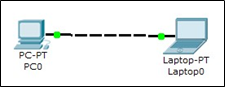
  1. From the network component box, click on End Devices and drag-and-drop a Generic PC icon and a Generic laptop icon into the Workspace.
  2. Click on Connections, then click on Copper Cross-Over, then on PC0, and select FastEthernet. After this, click on Laptop0 and select FastEthernet.  The link status LED should show up in green, indicating that the link is up.

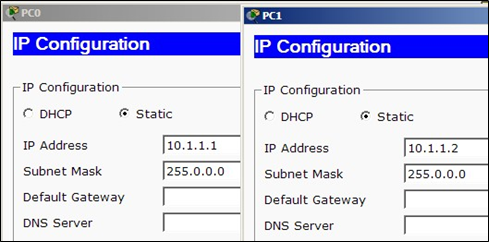
3. Click on the PC, go to the Desktop tab, click on IP Configuration, and enter an IP address and subnet mask. In this topology, the default gateway and DNS server information is not needed as there are only two end devices  in the network.

4. Close the window, open the laptop, and assign an IP address to it in the  same way. Make sure that both of the IP addresses are in the same subnet. We’ll be learning more about end device configuration in Chapter 3, Generic  IP End Devices.

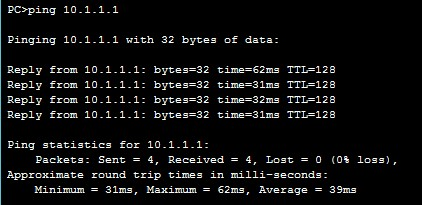
5. Close the IP Configuration box, open the command prompt, and ping the IP address of the device at the end to check connectivity.

Pinging Laptop0 from PC0

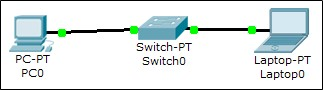
What is a network topology without a single network device in it? Add an Ethernet switch to this topology so that more than two end devices can be connected, by performing the following steps:

  1. Click on Switches from the device-type selection box and insert any switch (except Switch-PT-Empty) into the workspace.
  2. Remove the link between the PC and the laptop using the delete tool from the common tools bar.
  3. Choose the Copper Straight-Through cable and connect the PC and laptop with the switch. At this point, the link indicators on the switch are orange in color because the switchports are undergoing the listening and learning states of the Spanning Tree Protocol (STP).

4.Once the link turns green, as shown in the previous screenshot, ping again  to check the connectivity. The next chapter, Chapter 2, Network Devices, will deal with the configuration of network devices.

5.To save this topology, navigate to File | Save As and choose a location.  The topology will be saved with a .pkt extension, with the devices in  the same state.

Packet Tracer Network Simulator

Interface overview

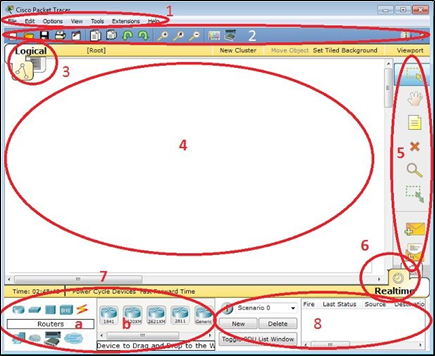
The layout of Packet Tracer is divided into several components similar to a photo editor. Match the numbering in the following screenshot with the explanations given after it:

The components of the Packet Tracer interface are as follows:

  • Area 1: Menu bar – This is a common menu found in all software applications; it is used to open, save, print, change preferences, and so on.
  • Area 2: Main toolbar – This bar provides shortcut icons to menu options  that are commonly accessed, such as open, save, zoom, undo, and redo,  and on the right-hand side is an icon for entering network information  for the current network.
  • Area 3: Logical/Physical workspace tabs – These tabs allow you to toggle between the Logical and Physical work areas.
  • Area 4: Workspace – This is the area where topologies are created and simulations are displayed.
  • Area 5: Common tools bar – This toolbar provides controls for manipulating topologies, such as select, move layout, place note, delete, inspect, resize shape, and add simple/complex PDU.

Area 6: Realtime/Simulation tabs – These tabs are used to toggle between the real and simulation modes. Buttons are also provided to control the  time, and to capture the packets.

  • Area 7: Network component box – This component contains all of the network and end devices available with Packet Tracer, and is further  divided into two areas:

°     Area 7a: Device-type selection box – This area contains device categories

°     Area 7b: Device-specific selection box – When a device category  is selected, this selection box displays the different device models within that category

  • Area 8: User-created packet box – Users can create highly-customized packets to test their topology from this area, and the results are displayed  as a list.